
DVIP Login and Account Access
Sign in with the phone number you registered. The current DVIP panel provides Password Login and Code login, plus Forgot Password for account recovery.
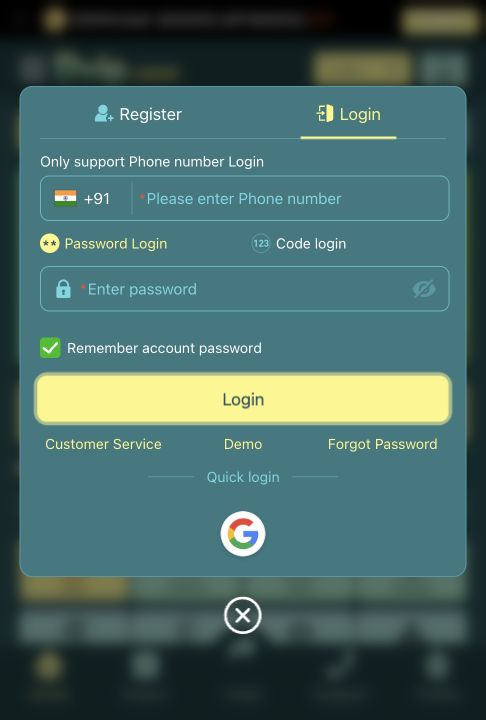
Sign in with your existing phone number
- 01
Open Login
Enter DVIP and choose Login. Check the phone prefix and enter the registered number.
- 02
Use the correct login option
Choose Password Login and enter your password, or Code login and follow the verification prompt.
- 03
Check the result
Select Login and read the result. Use Remember account password only on a device you control.
Forgot your password?
- 01
Open Forgot Password
Choose Forgot Password under the login button.
- 02
Start identity verification
The recovery screen asks for Phone number/Email/Account. Enter the identifier associated with your account and follow the verification instructions.
- 03
Change the password after verification
The screen separates Identity Verification from Change Password. Complete the verified recovery route before setting a new password.
Resolve the error you can see
Wrong number or password
Check the registered number, prefix and accidental spaces. If you cannot recall the password, use recovery rather than guessing repeatedly.
Verification is unavailable
Use Customer Service in the login panel if you cannot access the original phone number or finish the displayed check.
Page loads but sign-in fails
Keep the exact message, device and time of the attempt. Support can investigate the account issue; a new account is not a substitute for recovery.