
DVIP App Setup & Updates
Install or Update DVIPChoose Your Device. Follow the Setup.
Start from Download now at the top of the DVIP platform homepage. Choose the Android or iPhone option shown there, complete the device instructions and sign in with your existing account. Use the checks below if a download, installation or update stops.
- Android & iPhone
- Package choices
- Updates & troubleshooting
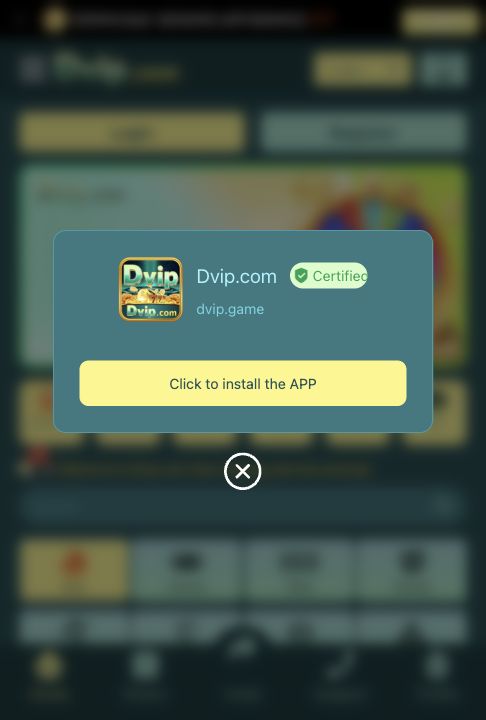
Choose the instructions for your device
The homepage download entry offers lightweight and native packages. Choose for your device first; the download guide lists all four package sizes.
| Your device | Where to start | What to check |
|---|---|---|
| Android | Choose the Android package in the homepage download entry. | Native app: Android 5.0 or later. Lightweight and native packages have different sizes. |
| iPhone | Choose the iOS option in the same download entry. | Follow the instructions for the selected iOS package; an Android APK is not an iPhone installer. |
| Phone or computer browser | Open the DVIP website. | Web access remains available when you prefer not to install or need help with setup. |
Before you start
Have your account details ready
Existing users should keep the registered phone number and recovery method available. You can use the same account after setup; creating a new account is not an installation step.
Check connection and storage
Use a stable connection and leave room for the package and installation files. If a download stops halfway, complete a fresh download before trying to install it.
Use the current platform entry
Begin from the DVIP homepage rather than an old file or unrelated download link. Read the device prompt before granting a permission or installing a package.
From the DVIP homepage to your download
- 01
Open the homepage download banner
Use Open DVIP below, then select Download now in the top banner marked DOWNLOAD GENUINE APP BONUS 577.
- 02
Choose Android or iOS
Follow the download prompt and select the package for your device. The download guide compares lightweight and native package sizes.
- 03
Complete the displayed download
Keep the page available while the download or setup prompt loads. Continue with the installation instructions shown for your selected package.
Complete setup on Android or iPhone
Android setup
- 01
Follow the selected package route
Continue through the Android prompt. If it downloads an APK, wait until the file finishes before opening it from the download notification or Downloads folder.
- 02
Read the system installation prompt
Check the package source and the permissions requested. If Android asks about installation from this source, review that specific request; do not disable device protection to work around a warning.
- 03
Open DVIP and sign in
When setup finishes, open the app and use your registered phone number. If the app opens but your details are rejected, use the login or recovery guide instead of reinstalling repeatedly.
iPhone setup
- 01
Use the iOS entry
Select the lightweight or native iOS option shown by DVIP and follow the instructions for that option.
- 02
Complete the displayed device steps
Use the access or installation method shown in the iOS prompt. Do not apply Android APK steps or add an unfamiliar profile based on a generic tutorial.
- 03
Open and check account access
Open the resulting DVIP entry when setup is complete and sign in. If the device cannot finish the setup, keep the exact message and use the website while support checks it.
Update without losing your account access
- 01
Prepare before updating
Check that you know the registered phone number and can use account recovery. Keep any useful error or update message; do not clear app data or uninstall as the first troubleshooting step.
- 02
Use the current update or download entry
Follow an update prompt in DVIP when one is shown, or return to the platform homepage download entry. Keep to the package route for your device and follow its instructions.
- 03
Open the updated entry and check the result
Wait for setup to finish, reopen DVIP and sign in if requested. If an old entry remains or an update reports a conflict, ask support which package to keep before removing either one.
Find the problem before repeating the setup
| What you see | First check | Next step |
|---|---|---|
| The download prompt does not appear | Close an event overlay if it covers the page, then check the connection and try the homepage download entry again. | Use the website and contact support if the entry still does not respond. |
| A download stops or stays incomplete | Check connection and free storage. | Start one fresh download from the platform entry; avoid opening a partial file. |
| Android says App not installed or cannot parse the package | Check that the download completed and that the chosen package matches the device. | For the native Android package, confirm Android 5.0 or later; keep the exact error if a fresh download also fails. |
| Installation is blocked or a security warning appears | Read the original warning and verify the source of the package. | Do not turn off device protection as a shortcut. Ask support to check the package or continue through the website. |
| Setup finishes but the app closes or stays on a loading screen | Close and reopen the app, check the connection and restart the device if needed. | Use the current platform entry and report the device, package choice and error to support. |
| The app opens but login fails | Check the registered phone number and the login option. | Use Login Help or Forgot Password; this is an account-access issue rather than an unfinished installation. |
DVIP installation questions
Do I need a new account after installing or updating?
No. Use your existing DVIP account. New users can register on the platform; existing users should use Login or account recovery when needed.
Which Android and iOS packages can I choose?
Android: 7.4 MB lightweight or 96.8 MB native. iOS: 5.75 MB lightweight or 95.96 MB native. The native Android package requires Android 5.0 or later. Use the current homepage prompt for the chosen package.
Can I use DVIP before finishing installation?
Yes. The DVIP website is available on phones and computers. You can continue through the website while resolving an installation issue.
Does the ₹577 banner mean the reward is credited as soon as I install?
The banner opens the App download activity. Check the activity instructions for account eligibility and claiming; installation alone is not a promise of an automatic ₹577 credit.
What should I send support if setup still fails?
Send your device model, Android or iOS version, chosen package, the step that failed and a screenshot of the exact error. Do not send your password or verification code.